mpyPico_ssd1306_uQR.py, generate QR Code using uQR.py, and display on SSD1306 I2C OLED.
"""
Run on Raspbery Pi Pico/MicroPython
to generate QR code using uQR,
and display on ssd1306 I2C OLED

- Libs needed:

ssd1306 library
https://github.com/micropython/micropython/blob/master/drivers/
display/ssd1306.py

JASchilz/uQR:
https://github.com/JASchilz/uQR

remark:
in the original example on uQR to display on ssd1306, scale of 2 is used.
It's found:
- If the data is too long, the small 128x64 OLED cannot display the whole matrix.
- In my test using my phone, scale of 1 is more easy to recognize.
Such that I use scale of 1 inside the loop to generate  qr code.
"""
from uos import uname
from usys import implementation
from machine import I2C
from time import sleep
from ssd1306 import SSD1306_I2C
from uQR import QRCode

print("====================================================")
print(implementation[0],
      str(implementation[1][0]) + "." +
      str(implementation[1][1]) + "." +
      str(implementation[1][2]))
print(uname()[3])
print("run on", uname()[4])
print("====================================================")

i2c0 = I2C(0)
print(i2c0)
print("Available i2c devices: "+ str(i2c0.scan()))

WIDTH = 128
HEIGHT = 64

oled = SSD1306_I2C(WIDTH, HEIGHT, i2c0)
oled.fill(0)

oled.text("RPi Pico", 0, 0)
oled.text("MicroPython", 0, 10)
oled.text("OLED(ssd1306)", 0, 20)
oled.text("uQR exercise", 0, 40)
oled.show()

sleep(5)
qr = QRCode()

qr.add_data("uQR example")
matrix = qr.get_matrix()
print("version:", qr.version)
print("len of matrix", len(matrix))

oled.fill(1)
for y in range(len(matrix)*2):                   # Scaling the bitmap by 2
    for x in range(len(matrix[0])*2):            # because my screen is tiny.
        value = not matrix[int(y/2)][int(x/2)]   # Inverting the values because
        oled.pixel(x, y, value)                  # black is `True` in the matrix.
oled.show()

while True:
    userinput = input("\nEnter something: ")
    if userinput == "":
        break
    print(userinput)
    qr.clear()
    qr.add_data(userinput)
    matrix = qr.get_matrix()
    print("version:", qr.version)
    print("len of matrix", len(matrix))

    oled.fill(1)
    scale = 1
    for y in range(len(matrix)*scale):
        for x in range(len(matrix[0])*scale):
            value = not matrix[int(y/scale)][int(x/scale)]
            oled.pixel(x, y, value)
    oled.show()

print("~ bye ~")
mpyPico_simpletest_uQR.py, generate QR Code and display on REPL.
"""
Run on Raspbery Pi Pico/MicroPython
to generate QR code using uQR,
and display on screen

- Libs needed:

JASchilz/uQR:
https://github.com/JASchilz/uQR

"""
from uos import uname
from usys import implementation
from usys import stdout

from uQR import QRCode

print("====================================================")
print(implementation[0],
      str(implementation[1][0]) + "." +
      str(implementation[1][1]) + "." +
      str(implementation[1][2]))
print(uname()[3])
print("run on", uname()[4])
print("====================================================")

# For drawing filled rectangles to the console:
stdout = stdout
WHITE = "\x1b[1;47m  \x1b[40m"
BLACK = "  "
NORMAL = '\033[1;37;0m'

def print_QR(uqr):

    qr_matrix = uqr.get_matrix()

    print("version:", uqr.version)
    qr_height = len(qr_matrix)
    qr_width = len(qr_matrix[0])
    print("qr_height:  ", qr_height)
    print("qr_width:   ", qr_width)

    for _ in range(4):
        for _ in range(qr_width + 8): #margin on top
            stdout.write(WHITE)
        print()
    for y in range(qr_height):
        stdout.write(WHITE * 4)       #margin on right
        for x in range(len(matrix[0])):
            value = qr_matrix[int(y)][int(x)]
            if value == True:
                stdout.write(BLACK)
            else:
                stdout.write(WHITE)
        stdout.write(WHITE * 4)        #margin on left
        print()
    for _ in range(4):
        for _ in range(qr_width + 8):  #margin on bottom
            stdout.write(WHITE)
        print()
    print(NORMAL)

qr = QRCode()

qr.add_data("uQR example")
matrix = qr.get_matrix()

print_QR(qr)

while True:
    userinput = input("\nEnter something: ")
    if userinput == "":
        break
    print(userinput)
    qr.clear()
    qr.add_data(userinput)
    matrix = qr.get_matrix()

    print_QR(qr)


print("~ bye ~")
Raspberry Pi Pico MicroPython exercise of using
uasyncio:
"""
MicroPython uasyncio exercise on RP2040
"""
from sys import implementation
from os import uname
import uasyncio as asyncio
from machine import Pin
import utime

led = Pin(25, Pin.OUT)

print(implementation.name)
print(uname()[3])
print(uname()[4])
print()
print(asyncio.__name__)
print(asyncio.__version__)

#Toggle onboard LED every 500ms
async def asyncTask1():
    while True:
        led.toggle()
        await asyncio.sleep_ms(500)

#print time every 1 second
async def asyncTask2():
    while True:
        print(utime.time())
        await asyncio.sleep_ms(1000)

loop = asyncio.get_event_loop()
loop.create_task(asyncTask1())
loop.create_task(asyncTask2())
loop.run_forever()

print("- bye -")
The BOOTSEL button on my Raspberry Pi Pico broken! Here is how to reset
Pico and enter BOOTLOADER mode using Python (MicroPython/CircuitPython) code;
such that no need touch BOOTSEL button and un-plug/re-plug USB.
In case the Raspberry Pi Pico is flashed MicroPython:
In this exercise, ESP32 (ESP32-DevKitC V4)/MicroPython play the role of AP,
act as socket server. Raspberry Pi connect to ESP32 WiFi network, run Python
code to load image, act as client and transmit the image to ESP32 server. The
ESP32 server display the image on a 240*240 IPS (ST7789 SPI) LCD. It's is
role reversed version of my previous exercise "Raspberry Pi/Python Server send image to ESP32/MicroPython Client via WiFi
TCP socket".
protocol:
Client | | Server
(Raspberry Pi/Python) | | (ESP32/MicroPython)
| |
| | Reset
|| Setup AP
| | Setup socket server
(connect to ESP32 WiFi) | |
| |
connect to ESP32 server | | accepted
|<-- ACK ---|
send the 0th line |---------->| display the 0th line
|<-- ACK ---| send ACK
send the 1st line |---------->| display the 1st line
|<-- ACK ---| send ACK
.
.
.
send the 239th line |---------->| display the 239th line
|<-- ACK ---| send ACK
close socket || close socket
| |
upyESP32_ImgServer_AP_20210408a.py, MicroPython code run on ESP32. Save to ESP32 named main.py, such that it can run on power-up without host connected.
import sys
from pkg_resources import require
import time
import matplotlib.image as mpimg
import socket

#HOST = '192.168.1.34'   # The server's hostname or IP address
HOST = '192.168.4.1'
PORT = 80               # The port used by the server

from PyQt5.QtWidgets import (QApplication, QWidget, QPushButton, QLabel,
                             QFileDialog, QHBoxLayout, QVBoxLayout)
from PyQt5.QtGui import QPixmap, QImage

print(sys.version)

class AppWindow(QWidget):

    camPreviewState = False  #not in Preview
    fileToUpload = ""

    def __init__(self):
        super().__init__()

        lbSysInfo = QLabel('Python:\n' + sys.version)
        vboxInfo = QVBoxLayout()
        vboxInfo.addWidget(lbSysInfo)

        #setup UI

        btnOpenFile = QPushButton("Open File", self)
        btnOpenFile.clicked.connect(self.evBtnOpenFileClicked)
        self.btnUpload = QPushButton("Upload", self)
        self.btnUpload.clicked.connect(self.evBtnUploadClicked)
        self.btnUpload.setEnabled(False)

        vboxCamControl = QVBoxLayout()
        vboxCamControl.addWidget(btnOpenFile)
        vboxCamControl.addWidget(self.btnUpload)
        vboxCamControl.addStretch()

        self.lbImg = QLabel(self)
        self.lbImg.resize(240, 240)
        self.lbImg.setStyleSheet("border: 1px solid black;")

        hboxCam = QHBoxLayout()
        hboxCam.addWidget(self.lbImg)
        hboxCam.addLayout(vboxCamControl)

        self.lbPath = QLabel(self)

        vboxMain = QVBoxLayout()
        vboxMain.addLayout(vboxInfo)
        vboxMain.addLayout(hboxCam)
        vboxMain.addWidget(self.lbPath)
        vboxMain.addStretch()
        self.setLayout(vboxMain)

        self.setGeometry(100, 100, 500,400)
        self.show()

    #wait client response in 3 byte len
    def wait_RESP(self, sock):
        #sock.settimeout(10)
        res = str()
        data = sock.recv(4)
        return data.decode("utf-8")

    def sendImageToServer(self, imgFile):
        print(imgFile)
        imgArray = mpimg.imread(imgFile)

        with socket.socket(socket.AF_INET, socket.SOCK_STREAM) as s:
            s.connect((HOST, PORT))
            print(self.wait_RESP(s))

            for j in range(240):
                time.sleep(0.1)
                b = bytes(imgArray[j])

                #print('send img : ' + str(j))
                s.sendall(bytes(b))
                #print('img sent : ' + str(j))

                ans = self.wait_RESP(s)
                #print(ans + " : " + str(j))

            print('image sent finished')
            s.close()

    def evBtnUploadClicked(self):
        print("evBtnUploadClicked()")
        print(self.fileToUpload)
        self.sendImageToServer(self.fileToUpload)

    def evBtnOpenFileClicked(self):
        options = QFileDialog.Options()
        options |= QFileDialog.DontUseNativeDialog
        targetPath, _ = QFileDialog.getOpenFileName(
            self, 'Open file', '/home/pi/Desktop',
            'Image files (*.jpg)', options=options)

        if targetPath:
            print(targetPath)
            self.lbPath.setText(targetPath)

            with open(targetPath):
                pixmap = QPixmap(targetPath)

                #accept 240x240 image only
                if pixmap.width()==240 and pixmap.height()==240:
                    self.lbImg.setPixmap(pixmap)
                    self.btnUpload.setEnabled(True)
                    self.fileToUpload = targetPath
                else:
                    self.btnUpload.setEnabled(False)


    def evBtnOpenFileClickedX(self):

        targetPath="/home/pi/Desktop/image.jpg"

        print(targetPath)
        self.lbPath.setText(targetPath)

        try:
            with open(targetPath):
                pixmap = QPixmap(targetPath)
                self.lbImg.setPixmap(pixmap)

                #as a exercise, get some info from pixmap
                print('\npixmap:')
                print(pixmap)
                print(type(pixmap))
                print(str(pixmap.width()) + " : " + str(pixmap.height()))
                print()

                print('convert to Image')
                qim = pixmap.toImage()
                print(qim)
                print(type(qim))
                print()

                print('read a pixel from image')
                qrgb = qim.pixel(0, 0)
                print(hex(qrgb))
                print(type(qrgb))

                r, g, b = qRed(qrgb), qGreen(qrgb), qBlue(qrgb)
                print([hex(r), hex(g), hex(b)])
                print()

        except FileNotFoundError:
            print('File Not Found Error')

if __name__ == '__main__':
    print('run __main__')
    app = QApplication(sys.argv)
    window = AppWindow()
    sys.exit(app.exec_())

print("- bye -")
Remark:
At beginning, I tried to set ESP32 as STA, by calling do_connect(), connect to my home/mobile WiFi network. But the result is very unstable in: Pi client send 240 pixel but ESP32 server can't receive all. That's why you can find some commented debug code (using print()) in the program.
After then, set ESP32 as AP, Pi connect to ESP32 WiFi network. The result have great improved and very stable.
In this exercise, Raspberry Pi/Python3 act as socket server, ESP32/MicroPython
act as client connect to server via WiFi TCP. Once received, server
(Pi/Python) send a image (240x240) to client (ESP32/MicroPython), then the
client display the image on a 240*240 IPS (ST7789 SPI) LCD.
To make it more flexible, the image is in 240 batch of 240 pixel x 3 color (r,
g, b).
protocol:
Server			|	    |	Client
(Raspberry Pi/Python)	|	    |	(ESP32/MicroPython)
			|	    |
Start			|	    |	Reset
			|	    |
Setup as 		|	    |
socketserver.TCPServer	|	    |
			|	    |
			|	    |	Join the WiFi network
		        |	    |	Connect to server with socket
			|	    |
			|<-- ACK ---|	send ACK
send the 0th line	|---------->|	display the 0th line
			|<-- ACK ---|	send ACK
send the 1st line	|---------->|	display the 1st line
			    .
			    .
			    .
send the 239th line	|---------->|	display the 239th line
			|<-- ACK ---|	send ACK
close socket		|	    |	close socket
			|	    |
wait next		|	    |	bye
pyMyTCP_ImgServer_20210324c.py, Python3 code run on Raspberry Pi.
import socketserver
import platform
import matplotlib.image as mpimg

imageFile = '/home/pi/Desktop/image.jpg'

print("sys info:")
for info in platform.uname():
    print(info)

class MyTCPHandler(socketserver.BaseRequestHandler):

    #wait client response in 3 byte len
    def wait_RESPONSE(self, client):
        client.settimeout(10)
        res = str()
        data = client.recv(4)
        return data.decode("utf-8")

    def handle(self):
        msocket = self.request

        print("{} connected:".format(self.client_address[0]))
        imgArray = mpimg.imread(imageFile)

        self.wait_RESPONSE(msocket)     #dummy assume 'ACK' received
        print('first RESPONSE received')

        for j in range(240):
            b = bytes(imgArray[j])
            msocket.sendall(bytes(b))
            self.wait_RESPONSE(msocket)  #dummy assume 'ACK' received

        print('image sent finished')

        msocket.close()


if __name__ == "__main__":
    HOST, PORT = "localhost", 9999

    # Create the server, binding to localhost on port 9999
    #with socketserver.TCPServer((HOST, PORT), MyTCPHandler) as server:
    with socketserver.TCPServer(('', PORT), MyTCPHandler) as server:
        # Activate the server; this will keep running until you
        # interrupt the program with Ctrl-C

        server.serve_forever()
This socketserver.TCPServer((HOST, PORT), MyTCPHandler) as server example is
modify from
Python 3 socketserver.TCPServer Example. I assume socketserver.TCPServer will handle Ctrl-C with port close. But
in my test, SOMETIMES throw OSError of "Address already in use". In my practice,
try pressing Ctrl-C in REPL/restart repeatedly.
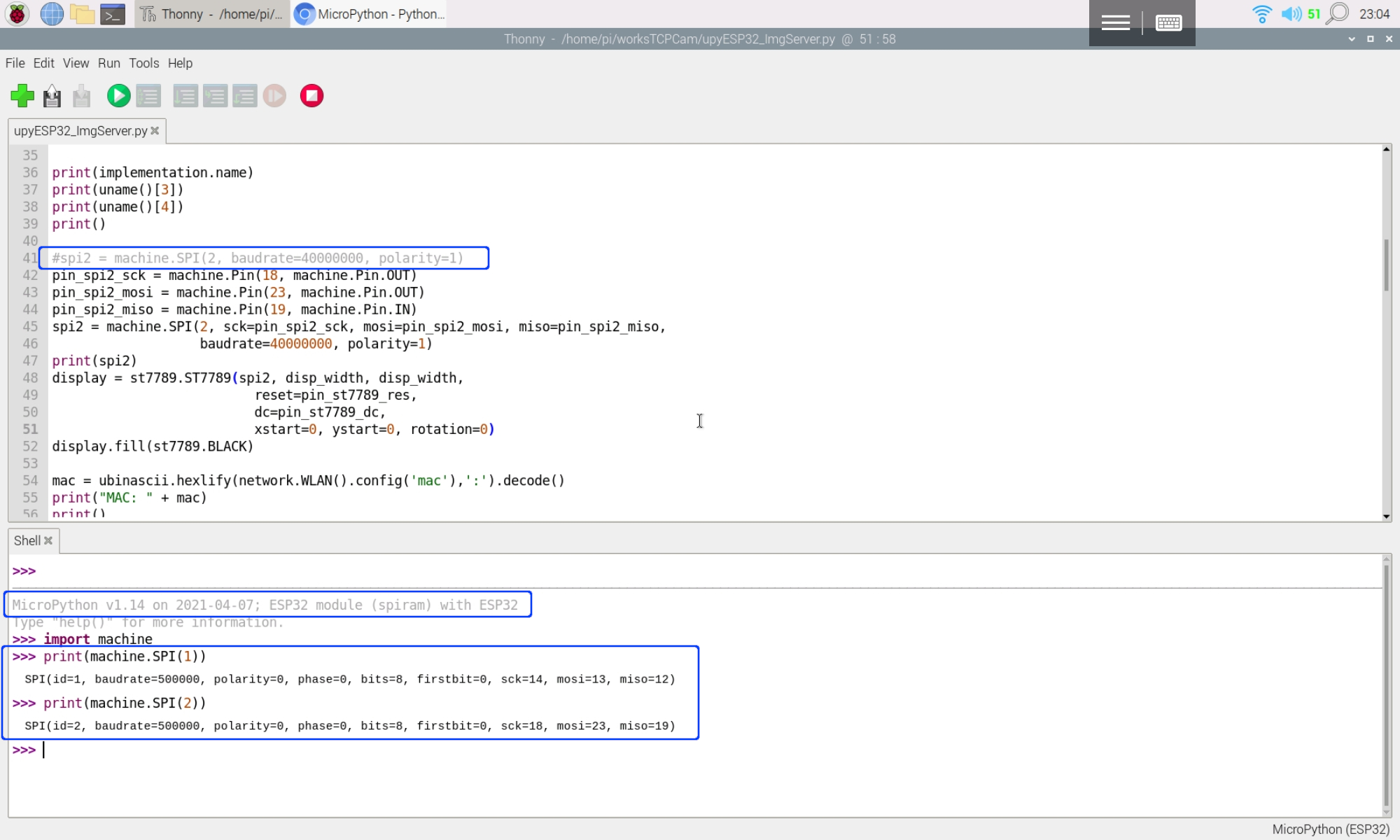
The above exercise run on version MicroPython version 'v1.14 on 2021-03-17',
SPI2 defined with default pin assignment.
Recently, I tested it on 'MicroPython v1.14 2021-02-02' (stable version
esp32spiram-idf4-20210202-v1.14.bin). It's founded there are NO default pin
assigned to SPI.
So you have to define the pins in your code,like this:
On current latest unstable version esp32spiram-20210407-unstable-v1.14-142-gcb396827f.bin, default pins are defined. Pins can be omitted using default assignment.
This exercise program Raspberry Pi Pico/MicroPython + ESP32-S (ESP-AT) as WiFi
TCP client to remote control ESP32-DevKitC V4/MicroPython WiFi TCP server
onboard LED.
In Client side:
ESP32-S
is a wireless module based on ESP32. It's flashed with AT-command firmware
ESP-AT. It's act as a WiFi co-processor. Raspberry Pi Pico/MicroPython send
AT-command to ESP32-S via UART. Please note that for ESP32 flashed with
ESP-AT: UART1 (IO16/IO17) is used to send AT commands and receive AT
responses, connected to GP0/GP1 of Pico.
Pico GP15 connected to ESP32-S EN pin, to reset it in power up.
Pico GP16 is used control remote LED.
In Server side:
ESP32-DevKitC V4 (with ESP32-WROVER-E module)/MicroPython is programed as WiFi
server, receive command from client to turn ON/OFF LED accordingly.
Connection:
MicroPython code:
Client side, mpyPico_ESP32S_remoteCli_.py run on Raspberry Pi Pico.
import uos
import machine
import utime
"""
Raspberry Pi Pico/MicroPython + ESP32-S exercise

ESP32-S with AT-command firmware (ESP-AT):
---------------------------------------------------
AT version:2.1.0.0(883f7f2 - Jul 24 2020 11:50:07)
SDK version:v4.0.1-193-ge7ac221
compile time(0ad6331):Jul 28 2020 02:47:21
Bin version:2.1.0WROM-3)
---------------------------------------------------

Pico send AT command to ESP32-S via UART,
Send command to server (ESP32/MicroPython)
to turn ON/OFF LED on server.
---------------------------------------------------
Connection:
powered by separated power supply
Pico                  ESP32-S
GND                   GND
GP0 (TX) (pin 1)      IO16 (RXD)
GP1 (RX) (pin 2)      IO17 (TXD)
GP15 (pin 20)         EN

GP16 (pin 21) button
---------------------------------------------------
"""
#server port & ip hard-coded,
#have to match with server side setting
server_ip="192.168.4.1"
server_port=8000

network_ssid = "ESP32-ssid"
network_password = "password"

ESP_EN = 15
PIN_ESP_EN = machine.Pin(ESP_EN, machine.Pin.IN, machine.Pin.PULL_UP)
DIn = machine.Pin(16, machine.Pin.IN, machine.Pin.PULL_UP)


print()
print("Machine: \t" + uos.uname()[4])
print("MicroPython: \t" + uos.uname()[3])
#indicate program started visually
led_onboard = machine.Pin(25, machine.Pin.OUT)
led_onboard.value(0)     # Toggle onboard LED
utime.sleep(0.5)         # to indiacte program start
led_onboard.value(1)
utime.sleep(1)
led_onboard.value(0)

#Reset ESP
PIN_ESP_EN = machine.Pin(ESP_EN, machine.Pin.OUT)
PIN_ESP_EN.value(1)
utime.sleep(0.5)
PIN_ESP_EN.value(0)
utime.sleep(0.5)
PIN_ESP_EN.value(1)
PIN_ESP_EN = machine.Pin(ESP_EN, machine.Pin.IN, machine.Pin.PULL_UP)

uart = machine.UART(0, baudrate=115200)
print(uart)

RES_OK = b'OK\r\n'
len_OK = len(RES_OK)

RESULT_OK      = '0'
RESULT_TIMEOUT = '1'
def sendCMD_waitResult(cmd, timeout=2000):
    print("CMD: " + cmd)
    uart.write(cmd)

    prvMills = utime.ticks_ms()
    result = RESULT_TIMEOUT
    resp = b""

    while (utime.ticks_ms()-prvMills)<timeout:
        if uart.any():
            resp = b"".join([resp, uart.read(1)])
            resp_len = len(resp)
            if resp[resp_len-len_OK:]==RES_OK:
                print(RES_OK + " found!")
                result = RESULT_OK
                break

    print("resp:")
    try:
        print(resp.decode())
    except UnicodeError:
        print(resp)

    return result

#to make it simple to detect, RMCMD & RMSTA designed same length
#Remote Command from client to serve
RMCMD_len = 6
RMCMD_ON  = "LEDONN"   #turn LED ON
RMCMD_OFF = "LEDOFF"   #turn LED OFF
#Remote status from server to client
RMSTA_len = 6
RMSTA_timeout = "timeout" #time out without/unknown reply
RMSTA_LEDON  = "LedOnn"
RMSTA_LEDOFF = "LedOff"
"""
#Expected flow to send command to wifi is:
Pico (client) to ESP-01S    response from ESP-01S to Pico
AT+CIPSEND=<cmd len>\r\n
                            AT+CIPSEND=<cmd len>\r\n
                            OK\r\n
                            >\r\n
<cmd>
                            Recv x bytes\r\n
                            SEND OK\r\n           ---> ESP (server)
                                                  <--- ESP (server) end with OK\r\n
                            +IPD,10:<RMSTA>OK\r\n
                            +IPD,2:\r\n
"""
def sendRemoteCmd(rmcmd, timeout=2000):
    result = RMSTA_timeout

    if sendCMD_waitResult('AT+CIPSEND=' + str(len(rmcmd)) + '\r\n', timeout)==RESULT_OK:

        #dummy read '>'
        while not uart.any():
            pass
        print(uart.read(1))

        print("Remote CMD: " + rmcmd)
        if sendCMD_waitResult(rmcmd) == RESULT_OK:

            endMills = utime.ticks_ms() + timeout
            resp = b""

            while utime.ticks_ms()<endMills:
                if uart.any():
                    resp = b"".join([resp, uart.read(1)])
                    resp_len = len(resp)
                    if resp[resp_len-len_OK:]==RES_OK:
                        print(RES_OK + " found!")
                        rmSta=resp[resp_len-len_OK-RMSTA_len:resp_len-len_OK]
                        strRmSta=rmSta.decode()   #convert bytes to string
                        print(strRmSta)
                        if strRmSta == RMSTA_LEDON:
                            result = strRmSta
                        elif strRmSta == RMSTA_LEDOFF:
                            result = strRmSta
                        break
            print("resp:")
            try:
                print(resp.decode())
            except UnicodeError:
                print(resp)

    return result

def sendCMD_waitResp(cmd, timeout=2000):
    print("CMD: " + cmd)
    uart.write(cmd)
    waitResp(timeout)
    print()

def waitResp(timeout=2000):
    prvMills = utime.ticks_ms()
    resp = b""
    while (utime.ticks_ms()-prvMills)<timeout:
        if uart.any():
            resp = b"".join([resp, uart.read(1)])
    print("resp:")
    try:
        print(resp.decode())
    except UnicodeError:
        print(resp)

"""
everytimes send command to server:
- join ESP32 network
- connect to ESP32 socket
- send command to server and receive status
"""
def connectRemoteSendCmd(cmdsend):
    clearRxBuf()
    print("join wifi network: " + "ESP32-ssid")
    while sendCMD_waitResult('AT+CWJAP="' + network_ssid + '","'
                       + network_password + '"\r\n') != RESULT_OK:
        pass

    sendCMD_waitResp('AT+CIFSR\r\n')    #Obtain the Local IP Address
    sendCMD_waitResult('AT+CIPSTATUS\r\n')

    print("wifi network joint")
    print("connect socket")

    if sendCMD_waitResult('AT+CIPSTART="TCP","'
                      + server_ip
                      + '",'
                      + str(server_port) + '\r\n', timeout=5000) == RESULT_OK:
        sendCMD_waitResult('AT+CIPSTATUS\r\n')
        print("RMST: " + sendRemoteCmd(rmcmd=cmdsend))

    clearRxBuf()
    sendCMD_waitResult('AT+CIPSTATUS\r\n')
    sendCMD_waitResult('AT+CWQAP\r\n')


def clearRxBuf():
    print("--- clear Rx buffer ---")
    buf = b""
    while uart.any():
        buf = b"".join([buf, uart.read(1)])
    print(buf)
    print("-----------------------")

led_onboard.value(0)
clearRxBuf()
sendCMD_waitResult('AT\r\n')          #Test AT startup
sendCMD_waitResult('AT+CWMODE=1\r\n') #Set the Wi-Fi mode 1 = Station mode
sendCMD_waitResult('AT+CIPMUX=0\r\n') #single connection.

led_onboard.value(1)
connectRemoteSendCmd(cmdsend=RMCMD_ON)
utime.sleep(1)
connectRemoteSendCmd(cmdsend=RMCMD_OFF)

#fast toggle led 5 times to indicate startup finished
for i in range(5):
    led_onboard.value(0)
    utime.sleep(0.2)
    led_onboard.value(1)
    utime.sleep(0.2)
    led_onboard.value(0)

print("Started")
print("waiting for button")
#read digital input every 10ms
dinMills = utime.ticks_ms() + 30
prvDin = 1
debounced = False
while True:
    if utime.ticks_ms() > dinMills:
        dinMills = utime.ticks_ms() + 30
        curDin = DIn.value()
        if curDin != prvDin:
            #Din changed
            prvDin = curDin
            debounced = False
        else:
            if not debounced:
                #DIn changed for > 30ms
                debounced = True
                if curDin:
                    connectRemoteSendCmd(cmdsend=RMCMD_OFF)
                else:
                    connectRemoteSendCmd(cmdsend=RMCMD_ON)
Server side, upyESP32_AP_RemoteSvr_.py run on ESP32-DevKitC V4.
import utime
import uos
import network
import usocket
from machine import Pin

"""
ESP32/MicroPython exercise:
ESP32 act as Access Point,
and setup a simple TCP server

receive command from client and turn ON/OFF LED,
and send back status.
"""

ssid= "ESP32-ssid"
password="password"

led=Pin(13,Pin.OUT)

print("----- MicroPython -----")
for u in uos.uname():
    print(u)
print("-----------------------")

for i in range(3):
    led.on()
    utime.sleep(0.5)
    led.off()
    utime.sleep(0.5)


ap = network.WLAN(network.AP_IF) # Access Point
ap.config(essid=ssid,
          password=password,
          authmode=network.AUTH_WPA_WPA2_PSK)
ap.config(max_clients=1)  # max number of client
ap.active(True)           # activate the access point

print(ap.ifconfig())
print(dir(ap))

mysocket = usocket.socket(usocket.AF_INET, usocket.SOCK_STREAM)
mysocket.setsockopt(usocket.SOL_SOCKET, usocket.SO_REUSEADDR, 1)

port = 8000
mysocket.bind(('',8000))
print("bind: " + str(port))
mysocket.listen(1)

#tomake it simple to detect, RMCMD & RMSTA designed same length
#Remote Command from client to serve
RMCMD_len = 6
RMCMD_ON  = "LEDONN"    #turn LED ON
RMCMD_OFF = "LEDOFF"   #turn LED OFF
#Remote status from server to client
RMSTA_len = 6
RMSTA_timeout = "timeout" #time out without/unknown reply
RMSTA_LEDON  = "LedOnn"
RMSTA_LEDOFF = "LedOff"

while True:
  conn, addr = mysocket.accept()
  print('Connected from: %s' % str(addr))
  print()
  request = conn.recv(1024)
  print('request: %s' % str(request))
  print()

  strRqs = request.decode()
  print("strRqs: "+strRqs)
  if strRqs==RMCMD_ON:
      conn.send(RMSTA_LEDON+'OK\r\n')
      led.on()
  elif strRqs==RMCMD_OFF:
      conn.send(RMSTA_LEDOFF+'OK\r\n')
      led.off()
  else:
      #unknown command
      conn.send(request.upper())
  conn.send('\r\n')
  conn.close()
"""
Raspperry Pi Pico exercise display on ili9341 SPI Display
using rdagger/micropython-ili9341,
MicroPython ILI9341 Display and XPT2046 Touch Screen Drivers
https://github.com/rdagger/micropython-ili9341
"""
from machine import Pin, SPI
from sys import implementation
from os import uname
import utime

import ili9341
from xglcd_font import XglcdFont

import mySetup

print(implementation.name)
print(uname()[3])
print(uname()[4])

print(SPI(0))
print(SPI(1))

display = mySetup.createMyDisplay()

print('Loading fonts...')
print('Loading unispace')
unispace = XglcdFont('fonts/Unispace12x24.c', 12, 24)

display.draw_text(0, 0, ili9341.__name__, unispace,
                  ili9341.color565(255, 128, 0))
display.draw_text(0, 25, ili9341.implementation.name, unispace,
                  ili9341.color565(0, 0, 200))
display.draw_text(0, 50, str(ili9341.implementation.version), unispace,
                  ili9341.color565(0, 0, 200))

display.draw_text(0, 100, "https://github.com/", unispace,
                  ili9341.color565(200, 200, 200))
display.draw_text(0, 125, "rdagger/micropython-ili9341", unispace,
                  ili9341.color565(200, 200, 200))

display.draw_text(0, 175, "ABCDEFGHIJKLMNOPQRS", unispace,
                  ili9341.color565(200, 200, 200))
display.draw_text(0, 200, "TUVWXYZ", unispace,
                  ili9341.color565(200, 200, 200))
display.draw_text(0, 225, "abcdefghijklmnopqrs", unispace,
                  ili9341.color565(200, 200, 200))
display.draw_text(0, 250, "tuvwxyz", unispace,
                  ili9341.color565(200, 200, 200))
display.draw_text(0, 275, "01234567890", unispace,
                  ili9341.color565(200, 200, 200))
display.draw_text(0, 300, "~!@#$%^&*()_+`-={}[]", unispace,
                  ili9341.color565(200, 200, 200))
display.draw_text(0, 325, "\|;:'<>,.?/", unispace,
                  ili9341.color565(200, 200, 200))

for i in range(320):
    display.scroll(i)
    utime.sleep(0.02)

for i in range(320, 0, -1):
    display.scroll(i)
    utime.sleep(0.02)

utime.sleep(0.5)
# Display inversion on
display.write_cmd(display.INVON)
utime.sleep(2)
# Display inversion off
display.write_cmd(display.INVOFF)

while True:
    pass

print("- bye -")
I also modify some of the examples in the library.
demo_bouncing_boxes_.py
"""ILI9341 demo (bouncing boxes)."""
from machine import Pin, SPI
from random import random, seed
from ili9341 import Display, color565
from utime import sleep_us, ticks_cpu, ticks_us, ticks_diff
import mySetup

class Box(object):
    """Bouncing box."""

    def __init__(self, screen_width, screen_height, size, display, color):
        """Initialize box.

        Args:
            screen_width (int): Width of screen.
            screen_height (int): Width of height.
            size (int): Square side length.
            display (ILI9341): display object.
            color (int): RGB565 color value.
        """
        self.size = size
        self.w = screen_width
        self.h = screen_height
        self.display = display
        self.color = color
        # Generate non-zero random speeds between -5.0 and 5.0
        seed(ticks_cpu())
        r = random() * 10.0
        self.x_speed = 5.0 - r if r < 5.0 else r - 10.0
        r = random() * 10.0
        self.y_speed = 5.0 - r if r < 5.0 else r - 10.0

        self.x = self.w / 2.0
        self.y = self.h / 2.0
        self.prev_x = self.x
        self.prev_y = self.y

    def update_pos(self):
        """Update box position and speed."""
        x = self.x
        y = self.y
        size = self.size
        w = self.w
        h = self.h
        x_speed = abs(self.x_speed)
        y_speed = abs(self.y_speed)
        self.prev_x = x
        self.prev_y = y

        if x + size >= w - x_speed:
            self.x_speed = -x_speed
        elif x - size <= x_speed + 1:
            self.x_speed = x_speed

        if y + size >= h - y_speed:
            self.y_speed = -y_speed
        elif y - size <= y_speed + 1:
            self.y_speed = y_speed

        self.x = x + self.x_speed
        self.y = y + self.y_speed

    def draw(self):
        """Draw box."""
        x = int(self.x)
        y = int(self.y)
        size = self.size
        prev_x = int(self.prev_x)
        prev_y = int(self.prev_y)
        self.display.fill_hrect(prev_x - size,
                                prev_y - size,
                                size, size, 0)
        self.display.fill_hrect(x - size,
                                y - size,
                                size, size, self.color)


def test():
    """Bouncing box."""
    try:
        # Baud rate of 40000000 seems about the max
        #spi = SPI(1, baudrate=40000000, sck=Pin(14), mosi=Pin(13))
        #display = Display(spi, dc=Pin(4), cs=Pin(16), rst=Pin(17))
        display = mySetup.createMyDisplay()

        display.clear()

        colors = [color565(255, 0, 0),
                  color565(0, 255, 0),
                  color565(0, 0, 255),
                  color565(255, 255, 0),
                  color565(0, 255, 255),
                  color565(255, 0, 255)]
        sizes = [12, 11, 10, 9, 8, 7]
        boxes = [Box(239, 319, sizes[i], display,
                 colors[i]) for i in range(6)]

        while True:
            timer = ticks_us()
            for b in boxes:
                b.update_pos()
                b.draw()
            # Attempt to set framerate to 30 FPS
            timer_dif = 33333 - ticks_diff(ticks_us(), timer)
            if timer_dif > 0:
                sleep_us(timer_dif)

    except KeyboardInterrupt:
        display.cleanup()


test()
demo_colored_squares_.py
"""ILI9341 demo (colored squares)."""
from time import sleep
from ili9341 import Display
from machine import Pin, SPI
from sys import modules
import mySetup
RED = const(0XF800) # (255, 0, 0)
GREEN = const(0X07E0) # (0, 255, 0)
BLUE = const(0X001F) # (0, 0, 255)
YELLOW = const(0XFFE0) # (255, 255, 0)
FUCHSIA = const(0XF81F) # (255, 0, 255)
AQUA = const(0X07FF) # (0, 255, 255)
MAROON = const(0X8000) # (128, 0, 0)
DARKGREEN = const(0X0400) # (0, 128, 0)
NAVY = const(0X0010) # (0, 0, 128)
TEAL = const(0X0410) # (0, 128, 128)
PURPLE = const(0X8010) # (128, 0, 128)
OLIVE = const(0X8400) # (128, 128, 0)
ORANGE = const(0XFC00) # (255, 128, 0)
DEEP_PINK = const(0XF810) # (255, 0, 128)
CHARTREUSE = const(0X87E0) # (128, 255, 0)
SPRING_GREEN = const(0X07F0) # (0, 255, 128)
INDIGO = const(0X801F) # (128, 0, 255)
DODGER_BLUE = const(0X041F) # (0, 128, 255)
CYAN = const(0X87FF) # (128, 255, 255)
PINK = const(0XFC1F) # (255, 128, 255)
LIGHT_YELLOW = const(0XFFF0) # (255, 255, 128)
LIGHT_CORAL = const(0XFC10) # (255, 128, 128)
LIGHT_GREEN = const(0X87F0) # (128, 255, 128)
LIGHT_SLATE_BLUE = const(0X841F) # (128, 128, 255)
WHITE = const(0XFFF) # (255, 255, 255)
colors = [RED,
GREEN,
BLUE,
YELLOW,
FUCHSIA,
AQUA,
MAROON,
DARKGREEN,
NAVY,
TEAL,
PURPLE,
OLIVE,
ORANGE,
DEEP_PINK,
CHARTREUSE,
SPRING_GREEN,
INDIGO,
DODGER_BLUE,
CYAN,
PINK,
LIGHT_YELLOW,
LIGHT_CORAL,
LIGHT_GREEN,
LIGHT_SLATE_BLUE,
WHITE ]
def test():
"""Test code."""
"""
# Baud rate of 40000000 seems about the max
spi = SPI(0, baudrate=40000000, sck=Pin(TFT_CLK_PIN), mosi=Pin(TFT_MOSI_PIN))
display = Display(spi, dc=Pin(TFT_DC_PIN), cs=Pin(TFT_CS_PIN), rst=Pin(TFT_RST_PIN))
"""display = mySetup.createMyDisplay()"""
# Build color list from all upper case constants (lazy approach)
colors = [getattr(modules[__name__], name) for name in dir(
modules[__name__]) if name.isupper() and name is not 'SPI']
"""
colors.sort()
c = 0
for x in range(0, 240, 48):
for y in range(0, 320, 64):
display.fill_rectangle(x, y, 47, 63, colors[c])
c += 1
sleep(9)
display.cleanup()
test()
demo_color_palette_.py
"""ILI9341 demo (color palette)."""
from time import sleep
from ili9341 import Display, color565
from machine import Pin, SPI
import mySetup

def hsv_to_rgb(h, s, v):
    """
    Convert HSV to RGB (based on colorsys.py).

        Args:
            h (float): Hue 0 to 1.
            s (float): Saturation 0 to 1.
            v (float): Value 0 to 1 (Brightness).
    """
    if s == 0.0:
        return v, v, v
    i = int(h * 6.0)
    f = (h * 6.0) - i
    p = v * (1.0 - s)
    q = v * (1.0 - s * f)
    t = v * (1.0 - s * (1.0 - f))
    i = i % 6

    v = int(v * 255)
    t = int(t * 255)
    p = int(p * 255)
    q = int(q * 255)

    if i == 0:
        return v, t, p
    if i == 1:
        return q, v, p
    if i == 2:
        return p, v, t
    if i == 3:
        return p, q, v
    if i == 4:
        return t, p, v
    if i == 5:
        return v, p, q


def test():
    """Test code."""
    # Baud rate of 40000000 seems about the max
    #spi = SPI(1, baudrate=40000000, sck=Pin(14), mosi=Pin(13))
    #display = Display(spi, dc=Pin(4), cs=Pin(16), rst=Pin(17))
    display = mySetup.createMyDisplay()

    c = 0
    for x in range(0, 240, 20):
        for y in range(0, 320, 20):
            color = color565(*hsv_to_rgb(c / 192, 1, 1))
            display.fill_circle(x + 9, y + 9, 9, color)
            c += 1
    sleep(9)
    display.cleanup()


test()
demo_color_wheel_.py
"""ILI9341 demo (color wheel)."""
from time import sleep
from ili9341 import Display, color565
from machine import Pin, SPI
from math import cos, pi, sin
import mySetup

HALF_WIDTH = const(120)
HALF_HEIGHT = const(160)
CENTER_X = const(119)
CENTER_Y = const(159)
ANGLE_STEP_SIZE = 0.05  # Decrease step size for higher resolution
PI2 = pi * 2


def hsv_to_rgb(h, s, v):
    """
    Convert HSV to RGB (based on colorsys.py).

        Args:
            h (float): Hue 0 to 1.
            s (float): Saturation 0 to 1.
            v (float): Value 0 to 1 (Brightness).
    """
    if s == 0.0:
        return v, v, v
    i = int(h * 6.0)
    f = (h * 6.0) - i
    p = v * (1.0 - s)
    q = v * (1.0 - s * f)
    t = v * (1.0 - s * (1.0 - f))
    i = i % 6

    v = int(v * 255)
    t = int(t * 255)
    p = int(p * 255)
    q = int(q * 255)

    if i == 0:
        return v, t, p
    if i == 1:
        return q, v, p
    if i == 2:
        return p, v, t
    if i == 3:
        return p, q, v
    if i == 4:
        return t, p, v
    if i == 5:
        return v, p, q


def test():
    """Test code."""
    # Baud rate of 40000000 seems about the max
    #spi = SPI(1, baudrate=40000000, sck=Pin(14), mosi=Pin(13))
    #display = Display(spi, dc=Pin(4), cs=Pin(16), rst=Pin(17))
    display = mySetup.createMyDisplay()

    x, y = 0, 0
    angle = 0.0
    #  Loop all angles from 0 to 2 * PI radians
    while angle < PI2:
        # Calculate x, y from a vector with known length and angle
        x = int(CENTER_X * sin(angle) + HALF_WIDTH)
        y = int(CENTER_Y * cos(angle) + HALF_HEIGHT)
        color = color565(*hsv_to_rgb(angle / PI2, 1, 1))
        display.draw_line(x, y, CENTER_X, CENTER_Y, color)
        angle += ANGLE_STEP_SIZE

    sleep(5)

    for r in range(CENTER_X, 0, -1):
        color = color565(*hsv_to_rgb(r / HALF_WIDTH, 1, 1))
        display.fill_circle(CENTER_X, CENTER_Y, r, color)

    sleep(9)
    display.cleanup()


test()
Run xpt_cal_.py, touch the corners to found the min/max of x/y. The detected
min/max of x/y will be shown on screen. (Please check the
video, y_max=2047 may be mis-detected, but very close. It apear before
touched.)