Showing posts with label openEuler. Show all posts

Sunday, May 8, 2022

OpenEuler 22.03 LTS (UKUI Desktop) run on Raspberry Pi 4

OpenEuler is an innovative platform nurtured by community collaboration. It aims to build a unified and open OS that supports multiple processor architectures, and to advance the hardware/software application ecosystem.

To download image of OpenEuler 22.03 LTS for Raspberry Pi, visit https://gitee.com/openeuler/raspberrypi (You can switch to English here). It provide various desktops include UKUI, DDE, Xfce and LXDE.

UKUI is a Linux desktop built by the KylinSoft software team over the years, primarily based on GTK and QT. Compared to other UI interfaces, UKUI is easy to use. The components of UKUI are small and low coupling, can run alone without relying on other suites. It can provide user a friendly and efficient experience. UKUI supports both x86_64 and aarch64 architectures.


This video show the steps to download image of OpenEuler 22.03 LTS (UKUI Desktop) for Raspberry Pi, boot on Raspberry Pi 4B/4G and setup changing to English, and some more.


Monday, September 20, 2021

Download and Install openEuler on Raspberry Pi

This video show how to download, install and run openEuler on Raspberry Pi, and switch language to English. Tested on Raspberry Pi 4B/4G with 7 inch mini HDMI LCD. Chinese is set system language by default, this video also show how to switch to English.

Download openEuler image for Raspberry Pi
(prepare on Raspberry Pi)

Visit https://www.openeuler.org/en/, scroll down and click on "use openEuler OS", choose Raspberry Pi.

In the new opened page, scroll down to How to download latest image, (https://gitee.com/openeuler/raspberrypi#how-to-download-latest-image).

Select the image to download, in my test: openEuler 20.03 LTS SP1 alpha4 (DDE desktop and Chinese input method),  openEuler-20.03-LTS-SP1-DDE-raspi-aarch64-alpha4.img.xz.

Extract the downloaded file. Then we can write the extracted image on microSD using Raspberry Pi Imager.

Then you can boot-up Raspberry Pi with the microSD. 

User and password:

The image pre-set with System user/password:
- root/openeuler 
- pi/raspberry

DDE cannot log in with root account, you can login user pi using password "raspberry".


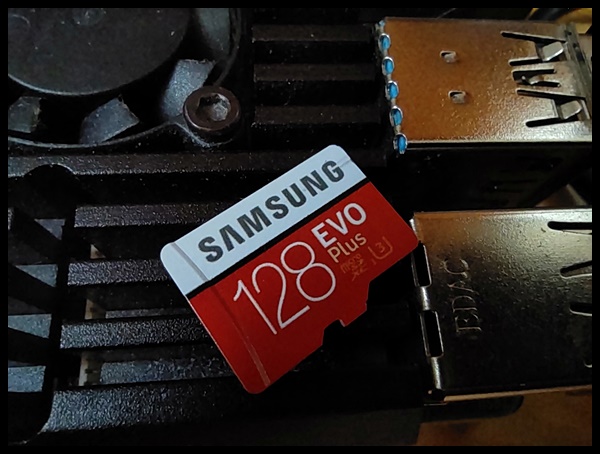
FYI: the microSD I used in this test is 128G Samsung Evo Plus:


Related:

Saturday, September 18, 2021

Install openEuler in VirtualBox, and install Deepin Desktop Environment (DDE)

openEuler is an innovative platform nurtured by community collaboration. It aims to build a unified and open OS that supports multiple processor architectures, and to advance the hardware/software application ecosystem.

This video show how to install openEuler in VirtualBox 6.1/Windows 10.


Visit https://www.openeuler.org/en/download/ to download ISO. It's openEuler-20.03-LTS-SP2-x86_64-dvd.iso in my case.

It's very straightforward to install openEuler in VirtualBox. But there are no desktop environment by default. Deepin Desktop Environment (DDE) can be installed using dnf (a Linux software package management tool).

Most probably you cannot run dnf, fail with error [Could not resolve host: repo.openeuler.org], as shown in the video.

To fix it:
edit /etc/sysconfig/network-scripts/ifcfg-enp0s3
set ONBOOT=yes

save and then reboot.

Then install DDE with command:
sudo dnf update
sudo dnf install dde
sudo systemctl set-default graphical.target
sudo reboot
After the restart is complete, use the user created during the installation process or the openeuler user to log in to the desktop.

dde cannot log in with root account.
dde has built-in openeuler user, the password of this user is openeuler.


Related: