Showing posts with label Windows. Show all posts

Monday, September 14, 2015

Find IP address of Raspberry Pi from Windows, use Advanced IP Scanner

Advanced IP Scanner is a free and fast network scanner allowing you to quickly retrieve information about network devices and get access to their various resources such as shared folders, HTTP, HTTPS, FTP, RDP and Radmin. The program does not require installation and has a simple and user-friendly interface. Advanced IP Scanner is widely used by system administrators and home users for network management and monitoring.

Advanced IP Scanner run on Windows 10 to find IP of Raspberry Pi


Related:
- Java example to find connected IPs in the same network


Monday, December 9, 2013

xrdp (X Remote Desktop Protocol) on Raspberry Pi + Remote Desktop Connection on Windows

xrdp (X Remote Desktop Protocol) is a Linux implementation of the Windows Remote Desktop Server/Terminal Server. With xrdp installed in your Raspberry Pi, you can remotely control your Raspberry Pi with Microsoft Remote Desktop Client (mstsc.exe) or any Linux client, also from Android device.

Remote Desktop Connection
Remote Desktop Connection run on Windows 8, log-in Raspberry pi.
You can install it in Raspberry Pi with the commnad:
$ sudo apt-get install xrdp

In Windows side, search Remote Desktop Connection, log-in with your your pi user name and password.


Related:
- Remote control Raspberry Pi from Android with Microsoft Remote Desktop app
- Use Remmina (remote desktop client) from Linux

Tuesday, December 3, 2013

Install FTP Client (FileZilla Client) on Windows 8

FileZilla Client is a open source FTP client for various platforms, distributed free of charge under the terms of the GNU General Public License.


Note: There are some other bundle software will be installed...! (I don't know is it various or not...!?)

Related:
- Install FTP server, vsftpd, on Raspberry Pi

Saturday, November 2, 2013

Run PuTTY + Xming in Windows to login Raspberry Pi remotely via ssh, with GUI

To remote login Raspberry Pi from Windows, via ssh, with GUI, we can use PuTTY and Xming.
- Download PuTTY.
- Downlaod and install Xming.

To run PuTTY and Xming to login Raspberry Pi:

Run Xming, it will be display in Task bar of Windows.


Run PuTTY.
- Enter the IP address of host Raspberry Pi in Host name.


- In Connection > SSH > X11, check Enable X11 forwarding, and enter "localhost:0" in X display location. And click Open to connect Raspberry Pi.


This demo video show the details.


As shown in the video, we can also open two PuTTY to login Raspberry Pi in two windows.

Install Xming (X Server) on Windows

Xming is a X Window System Server for Windows. In the next post I will show how to Xming+PuTTY login Raspberry Pi via ssh, display GUI application.

Visit http://sourceforge.net/projects/xming/ to download and run the setup program.


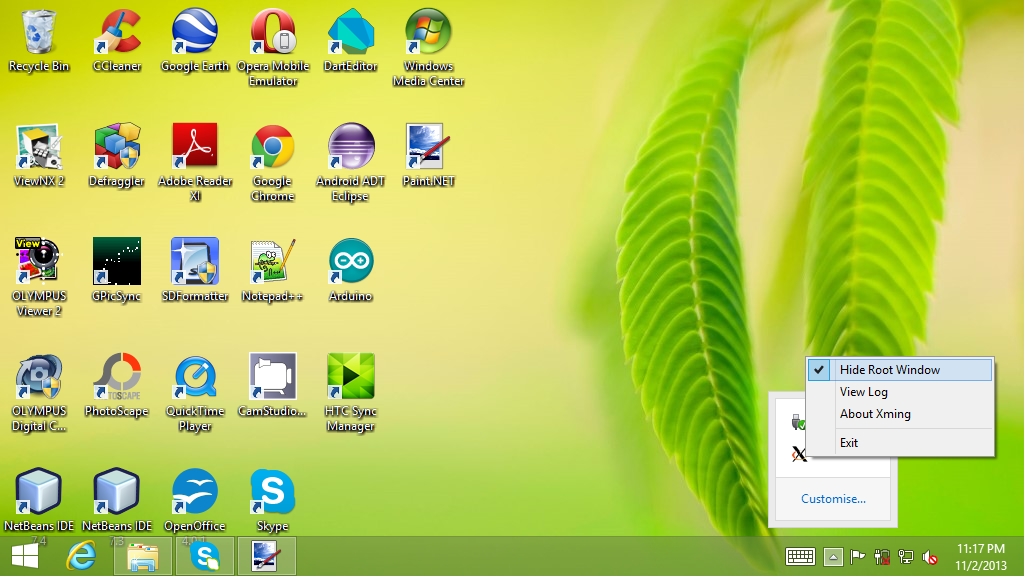
After Xming launched, its icon will be displayed in Task bar.


Right click Xming icon, uncheck the option "Hide Root Window", you can see the X-Window.


Run PuTTY on Windows 8.1 to log-in Raspberry Pi SSH server

To login in Raspberry Pi SSH server from Windows, we can use PuTTY.

Visit http://www.putty.org/, follow the links to download binary putty.exe for Windows.


Enter host Raspberry Pi's IP (Read the post "Check my IP address of Raspberry Pi"), and click Open button.


Enter user name, pi, and password to start using ssh.


Related:
- Setup Raspberry Pi SSH server
- Remote login Raspberry Pi SSH server from Linux
- Run PuTTY + Xming in Windows to login Raspberry Pi remotely via ssh, with GUI
- Remote control Raspberry Pi from Windows 8.1 using VNC