Showing posts with label Xming. Show all posts

Saturday, November 2, 2013

Run PuTTY + Xming in Windows to login Raspberry Pi remotely via ssh, with GUI

To remote login Raspberry Pi from Windows, via ssh, with GUI, we can use PuTTY and Xming.
- Download PuTTY.
- Downlaod and install Xming.

To run PuTTY and Xming to login Raspberry Pi:

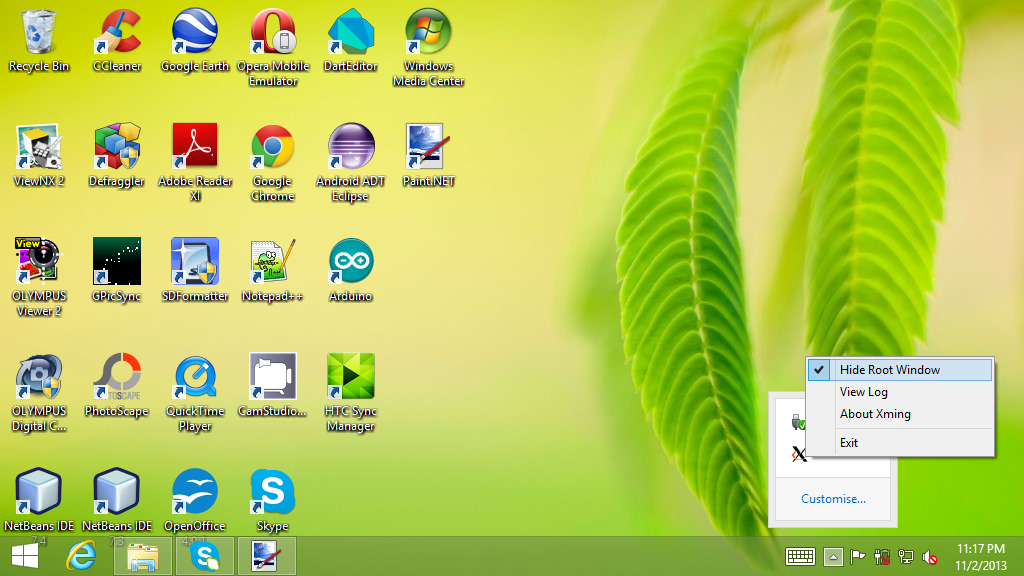
Run Xming, it will be display in Task bar of Windows.

Run PuTTY.
- Enter the IP address of host Raspberry Pi in Host name.


- In Connection > SSH > X11, check Enable X11 forwarding, and enter "localhost:0" in X display location. And click Open to connect Raspberry Pi.


This demo video show the details.


As shown in the video, we can also open two PuTTY to login Raspberry Pi in two windows.

Install Xming (X Server) on Windows

Xming is a X Window System Server for Windows. In the next post I will show how to Xming+PuTTY login Raspberry Pi via ssh, display GUI application.

Visit http://sourceforge.net/projects/xming/ to download and run the setup program.


After Xming launched, its icon will be displayed in Task bar.


Right click Xming icon, uncheck the option "Hide Root Window", you can see the X-Window.