$ pinout

Related:
~ How to check Raspberry Pi 4B reversion 1.2, it provide more option to check your board version.
from Tkinter import *   #for Python 2
#from tkinter import *   #for Python 3

import platform
import RPi.GPIO as GPIO

def setPwm(newvalue):
    pwmValue.set(newvalue)
    pwmled.ChangeDutyCycle(float(newvalue))

def on_closing():
    print("Clean up")
    pwmled.stop()
    GPIO.cleanup()
    print("bye")
    master.destroy()

#mode = GPIO.BCM
#led = 21
mode = GPIO.BOARD
led = 40

print("Raspberry Pi board revision: "
      + str(GPIO.RPI_INFO['P1_REVISION']))
print("Machine: "
      + platform.machine())
print("Processor: "
      + platform.processor())
print("System: "
      + platform.system())
print("Version: "
      + platform.version())
print("Uname: "
      + str(platform.uname()))
print("Python version: "
      + platform.python_version())
print("RPi.GPIO version: "
      + str(GPIO.VERSION))

GPIO.setmode(mode)
GPIO.setup(led, GPIO.OUT)
pwmled = GPIO.PWM(led, 50)
pwmled.start(0)

master = Tk()

pwmValue = StringVar()
label = Label(master, textvariable=pwmValue, relief=RAISED )
label.pack()

slider = Scale(master, from_=0, to=100, orient=HORIZONTAL, command=setPwm)
slider.pack()

master.protocol("WM_DELETE_WINDOW", on_closing)
mainloop()

import RPi.GPIO as GPIO
import time
import platform

print("Raspberry Pi board revision: "
      + str(GPIO.RPI_INFO['P1_REVISION']))
print("Machine: "
      + platform.machine())
print("Processor: "
      + platform.processor())
print("System: "
      + platform.system())
print("Version: "
      + platform.version())
print("Uname: "
      + str(platform.uname()))
print("Python version: "
      + platform.python_version())
print("RPi.GPIO version: "
      + str(GPIO.VERSION))
print("Ctrl-C to terminate and clean up GPIO")

#mode = GPIO.BCM
#led = 21
mode = GPIO.BOARD
led = 40

GPIO.setmode(mode)
GPIO.setup(led, GPIO.OUT)
pwmled = GPIO.PWM(led, 50)
pwmled.start(0)

try:
    while True:
        for dc in range(0, 101, 5):
            pwmled.ChangeDutyCycle(dc)
            time.sleep(0.1)
        for dc in range(100, -1, -5):
            pwmled.ChangeDutyCycle(dc)
            time.sleep(0.1)
finally:
    print("Clean up")
    pwmled.stop()
    GPIO.cleanup()


Python 2.7.9 (default, Mar  8 2015, 00:52:26)
[GCC 4.9.2] on linux2
Type "copyright", "credits" or "license()" for more information.
>>> from gpiozero import LED, Button
>>> led=LED(2)
>>> button=Button(3)
>>> button.when_pressed=led.on
>>> button.when_released=led.off
>>>


| RFID-RC522 pin Name | Pin # | Raspberry Pi 2 Pin name |
|---|---|---|
| SDA | 24 | GPIO8 |
| SCK | 23 | GPIO11 |
| MOSI | 19 | GPIO10 |
| MISO | 21 | GPIO9 |
| IRQ | - | no connection |
| GND | GND | GND |
| RST | 22 | GPIO25 |
| 3.3V | 1 | 3V3 |

import sys
import os
import RPi.GPIO as GPIO
import time

print("**********************************************")
print("*** Toggle PWR/ACT LED on Raspberry Pi 2 B ***")
print("***        for Raspberry Pi 2 B only       ***")
print("**********************************************")
print("- System info -")
print(sys.version)
print("GPIO.VERSION: " + GPIO.VERSION)
print("GPIO.RPI_REVISION (deprecated): " + str(GPIO.RPI_REVISION))

print("")
print("GPIO.RPI_INFO:")
print(GPIO.RPI_INFO)

print("")
for keys,values in GPIO.RPI_INFO.items():
 print(keys + " : " + str(values))

print("")
#display trigger for led0 and led1
print("- Original trigger for led 0 -")
os.system("cat /sys/class/leds/led0/trigger")
print("- Original trigger for led 1 -")
os.system("cat /sys/class/leds/led1/trigger")

print("remove the trigger for led0 and led1")
os.system("echo none >/sys/class/leds/led0/trigger")
os.system("echo none >/sys/class/leds/led1/trigger")
os.system("cat /sys/class/leds/led0/trigger")
os.system("cat /sys/class/leds/led1/trigger")
print("")

GPIO.setwarnings(False)
GPIO.setmode(GPIO.BCM)
GPIO.setup(35, GPIO.OUT) #Red PWR LED on RPi2B
GPIO.setup(47, GPIO.OUT) #Green Activity LED on RPi2B

for num in range(1, 5):
    print num

    #Control led0 with RPi.GPIO
    GPIO.output(47, False)  #Turn OFF ACT LED for RPi 2 B
    GPIO.output(35, True) #Turn ON PWR LED for RPi 2 B
    print "LED PWR(RED)-ON ACT(GREEN)-OFF"
    time.sleep(2)

    #Control led1 with system's shell
    os.system("echo 1 >/sys/class/leds/led0/brightness")
    os.system("echo 0 >/sys/class/leds/led1/brightness")
    print "LED PWR(RED)-OFF ACT(GREEN)-ON"
    time.sleep(3)

print("")
print("Finished")
#rsume the trigger for led0 and
#assume it's mmc0 and input
os.system("echo mmc0 >/sys/class/leds/led0/trigger")
os.system("echo input >/sys/class/leds/led1/trigger")

print("- Resummed trigger for led 0 -")
os.system("cat /sys/class/leds/led0/trigger")
print("- Resummed trigger for led 1 -")
os.system("cat /sys/class/leds/led1/trigger")
print("")
import sys
import RPi.GPIO as GPIO
import time

print(sys.version)
print("GPIO.VERSION: " + GPIO.VERSION)
print("GPIO.RPI_REVISION (deprecated): " + str(GPIO.RPI_REVISION))

print("")
print("GPIO.RPI_INFO:")
print(GPIO.RPI_INFO)

print("")
for keys,values in GPIO.RPI_INFO.items():
 print(keys + " : " + str(values))

GPIO.setwarnings(False)
GPIO.setmode(GPIO.BCM)
#GPIO.setup(16, GPIO.OUT)
GPIO.setup(47, GPIO.OUT)

for num in range(1, 5):
    print num
    #GPIO.output(16, True)   ##Turn OFF LED
    GPIO.output(47, False)   ##Turn OFF LED for RPi 2 B
    print "LED OFF"
    time.sleep(2)
    #GPIO.output(16, False) ##Turn ON LED
    GPIO.output(47, True)   ##Turn ON LED for RPi 2 B
    print "LED ON"
    time.sleep(3)

#GPIO.output(16, True)   ##Turn OFF LED
GPIO.output(47, False)   ##Turn OFF LED for RPi 2 B
from bottle import route, run
import RPi.GPIO as GPIO

host = '192.168.1.105'

pinButton = 17
pinLed = 18
GPIO.setmode(GPIO.BCM)
# pin 17 as input with pull-up resistor
GPIO.setup(pinButton, GPIO.IN, pull_up_down=GPIO.PUD_UP)
# pin 18 as output
GPIO.setup(pinLed, GPIO.OUT)

LedState = False

def read_button():
    if GPIO.input(pinButton):
        return 'Released'
    else:
        return 'Pressed'

def update_led():
    GPIO.output(pinLed, LedState)

def toggleLed():
    global LedState
    LedState = not LedState

@route('/')
@route('/<arg>')
def index(arg=""):
    if arg == "toggle":
        toggleLed()

    update_led()

    response = "<html>\n"
    response += "<body>\n"
    response += "<script>\n"
    response += "function changed()\n"
    response += "{window.location.href='/toggle'}\n"
    response += "</script>\n"

    response += "Button: " + read_button() +"\n"
    response += "<br/><br/>\n"
    response += "<input type='button' onClick='changed()' value=' LED '/>\n"
    response += "</body></html>\n"
    return response

run(host=host, port=80)
import RPi.GPIO as GPIO
import time

GPIO.setmode(GPIO.BCM)
# pin 17 as input with pull-up resistor
GPIO.setup(17, GPIO.IN, pull_up_down=GPIO.PUD_UP)
# pin 18 as output
GPIO.setup(18, GPIO.OUT)

def ButtonCallback(channel):
    if (GPIO.input(17)):
        GPIO.output(18, False)
    else:
        GPIO.output(18, True)

GPIO.add_event_detect(17, GPIO.BOTH, callback=ButtonCallback);

while(True):
    #do nothing
    time.sleep(1)
import RPi.GPIO as GPIO


GPIO.setmode(GPIO.BCM)
# pin 17 as input with pull-up resistor
GPIO.setup(17, GPIO.IN, pull_up_down=GPIO.PUD_UP)
# pin 18 as output
GPIO.setup(18, GPIO.OUT)

while(True):
 if (GPIO.input(17)):
  GPIO.output(18, False)
 else:
  GPIO.output(18, True)

import RPi.GPIO as GPIO
import time

led_pin = 18
GPIO.setmode(GPIO.BCM)
GPIO.setup(led_pin, GPIO.OUT)

#frequency 500 Hz
led_pwm = GPIO.PWM(led_pin, 500)
#duty cycle = 100
led_pwm.start(100)

while(True):
    led_pwm.ChangeDutyCycle(100)
    time.sleep(1)
    led_pwm.ChangeDutyCycle(80)
    time.sleep(1)
    led_pwm.ChangeDutyCycle(60)
    time.sleep(1)
    led_pwm.ChangeDutyCycle(40)
    time.sleep(1)
    led_pwm.ChangeDutyCycle(20)
    time.sleep(1)
    led_pwm.ChangeDutyCycle(0)
    time.sleep(1)

import RPi.GPIO as GPIO
import time

GPIO.setmode(GPIO.BCM)
GPIO.setup(18, GPIO.OUT)

while(True):
    GPIO.output(18, True)
    time.sleep(1.5)
    GPIO.output(18, False)
    time.sleep(0.5)
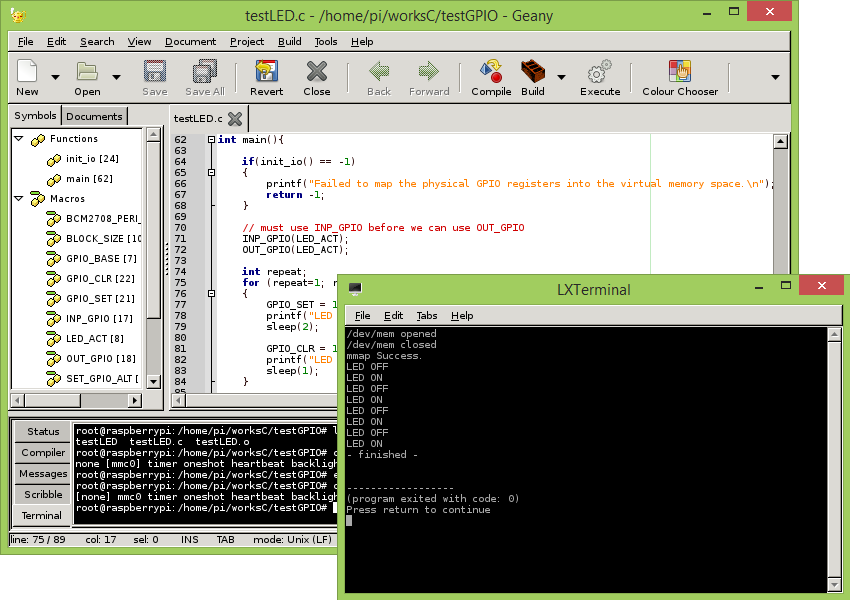 |
| Control the Raspberry Pi on-board LED using C language |
#include <stdio.h>
#include <fcntl.h>
#include <sys/mman.h>
#include <unistd.h>

#define BCM2708_PERI_BASE 0x20000000
#define GPIO_BASE   (BCM2708_PERI_BASE + 0x200000) /* GPIO controller */
#define LED_ACT    16

#define BLOCK_SIZE (4*1024)

int mem_fd;
void *gpio_map;
volatile unsigned *gpio;

// GPIO setup macros. Always use INP_GPIO(x) before using OUT_GPIO(x) or SET_GPIO_ALT(x,y)
#define INP_GPIO(g) *(gpio+((g)/10)) &= ~(7<<(((g)%10)*3))
#define OUT_GPIO(g) *(gpio+((g)/10)) |=  (1<<(((g)%10)*3))
#define SET_GPIO_ALT(g,a) *(gpio+(((g)/10))) |= (((a)<=3?(a)+4:(a)==4?3:2)<<(((g)%10)*3))

#define GPIO_SET *(gpio+7)  // sets   bits which are 1 ignores bits which are 0
#define GPIO_CLR *(gpio+10) // clears bits which are 1 ignores bits which are 0

int init_io()
{
 /* open /dev/mem */
 if ((mem_fd = open("/dev/mem", O_RDWR|O_SYNC) ) < 0) {
  printf("can't open /dev/mem \n");
  return(-1);
 }else{
  printf("/dev/mem opened\n");

  /* mmap GPIO */
  gpio_map = mmap(
   NULL,             //Any adddress in our space will do
   BLOCK_SIZE,       //Map length
   PROT_READ|PROT_WRITE,// Enable reading & writting to mapped memory
   MAP_SHARED,       //Shared with other processes
   mem_fd,           //File to map
   GPIO_BASE         //Offset to GPIO peripheral
  );

  close(mem_fd);
  printf("/dev/mem closed\n");

  if (gpio_map == MAP_FAILED) {
   printf("mmap error %d\n", (int)gpio_map);//errno also set!
   return(-1);
  }else{
   printf("mmap Success.\n");
  }

 }

 // Always use volatile pointer!
   gpio = (volatile unsigned *)gpio_map;

   return 0;
}


int main(){

 if(init_io() == -1)
 {
  printf("Failed to map the physical GPIO registers into the virtual memory space.\n");
  return -1;
 }

 // must use INP_GPIO before we can use OUT_GPIO
 INP_GPIO(LED_ACT);
    OUT_GPIO(LED_ACT);

 int repeat;
 for (repeat=1; repeat<5; repeat++)
 {
  GPIO_SET = 1 << LED_ACT;
  printf("LED OFF\n");
  sleep(2);

  GPIO_CLR = 1 << LED_ACT;
  printf("LED ON\n");
  sleep(1);
 }

 printf("- finished -\n");
 return 0;
}

 |
| Control the on-board LED using Python |
import RPi.GPIO as GPIO
import time

GPIO.setwarnings(False)
GPIO.setmode(GPIO.BCM)
GPIO.setup(16, GPIO.OUT)

for num in range(1, 5):
    print num
    GPIO.output(16, True)   ##Turn OFF LED
    print "LED OFF"
    time.sleep(2)
    GPIO.output(16, False)   ##Turn ON LED
    print "LED ON"
    time.sleep(1)


 |
| Control the on-board LED on Raspberry Pi |
