Showing posts with label Real VNC Viewer. Show all posts

Thursday, February 16, 2017

VNC Connect, a brand-new version of VNC

VNC Connect, a brand-new version of VNC that allows you not only to make direct connections within your own networks, but also to make secure cloud-brokered connections back to your computer from anywhere in the world, with no specialist networking knowledge needed.

The main change in VNC Connect is the ability to connect back to your Raspberry Pi from anywhere in the world, from a wide range of devices, without any complex port forwarding or IP addressing configuration. The cloud service brokers a secure, end-to-end encrypted connection back to your Pi, letting you take control simply and securely from wherever you happen to be.


A guest post at Raspberry Pi blog, GET ‘BACK TO MY PI’ FROM ANYWHERE WITH VNC CONNECT, Andy Clark, Engineering Manager at RealVNC, introduces VNC Connect: a brand-new, and free, version of VNC that makes it simple to connect securely to your Raspberry Pi from anywhere in the world.


Thursday, February 2, 2017

Remote login Raspbian Jessie With Pixel using RealVNC Viewer from Windows

VNC Server is now built-in to Raspberry Pi running RASPBIAN JESSIE WITH PIXEL. Please note that xrdp conflicts with the RealVNC server, so you shouldn’t install both at once.  ~ reference link

This post show how to enable VNC Server on Raspberry Pi, download and run RealVNC View on Microsoft Windows 10 to remote login Raspberry Pi.

First of all enable VNC Server on Raspberry Pi:
- Open Raspberry Pi Configuration: Raspberry Pi Menu -> Preferences -> Raspberry Pi Configuration.
- Make sure VNC option is enabled.


You’ll see the VNC menu appear on the taskbar,


- Visit https://www.realvnc.com/download/viewer/ to download VNC Viewer, then run it.

This video show how:


Related:
VNC Connect, a brand-new version of VNC

Thursday, November 7, 2013

Remote control Raspberry Pi from Windows 8.1 using VNC

Before establish VNC connection between Raspberry Pi and Windows, you have to prepare the following setup.
- Enable ssh on Raspberry Pi. It should be already enabled in default setting.
- You have to know the IP address of your Raspberry Pi.
- Install PuTTY on Windows.
Install TightVNC server on Raspberry Pi.
Install Real VNC Viewer on Windows.

This demo run on Windows 8.1. In order to make it easy to demo the operation. I will log-in Raspberry Pi from Windows 8.1 with PuTTY using simple ssh to start vncserver. Suppose it have same result if you start vncserver at Raspberry Pi locally.

- Enter the command in LXTerminal:
$ vncserver

Now the vncserver is running. Note the number shown behind the words "New 'X' desktop is raspberrypi:", it is the SSH tunnel port number. We will use it to specify our connection later, when we setup SSH tunnel.

run vncserver in Raspberry Pi side
Start another PuTTY session to log in the running vncserver. It's the actual vnc connection in this demo.

- Enter the IP address of your Raspberry Pi in "Host Name (or IP address)" box.


- Expend Connection > SSH > X11 on the left, check to Enable X11 forwarding.


- Expend Connection > SSH > Tunnels, Enter 590X in Source port, where X is the SSH tunnel port number when we start vncserver in Raspberry Pi, and enter <Raspberry Pi IP address>:590X in Destination.


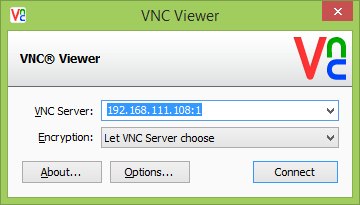
- Enter <Raspberry Pi IP address>:X in VNC Server.


- You will be prompted with Unencrypted Connection.


- Enter Password, set in Install TightVNC server on Raspberry Pi.


* Success


To end vncserver session, end the command in Raspberry Pi.
$ vncserver -kill :X

demo video:


Related:
- Set desktop size of vncserver
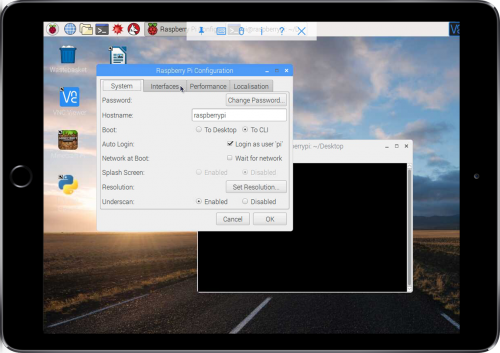
Install Real VNC Viewer on Windows

With Real VNC Viewer, you can control VNC-enabled computers, such as Raspberry Pi. It support Windows, Mac OS X, Linux, Solaris, HP-UX and AIX.

To download Real VNC Viewer, visit http://www.realvnc.com/download/viewer/. It's a standalone application, no installation required.

Read more: Remote control Raspberry Pi from Windows 8.1 using VNC