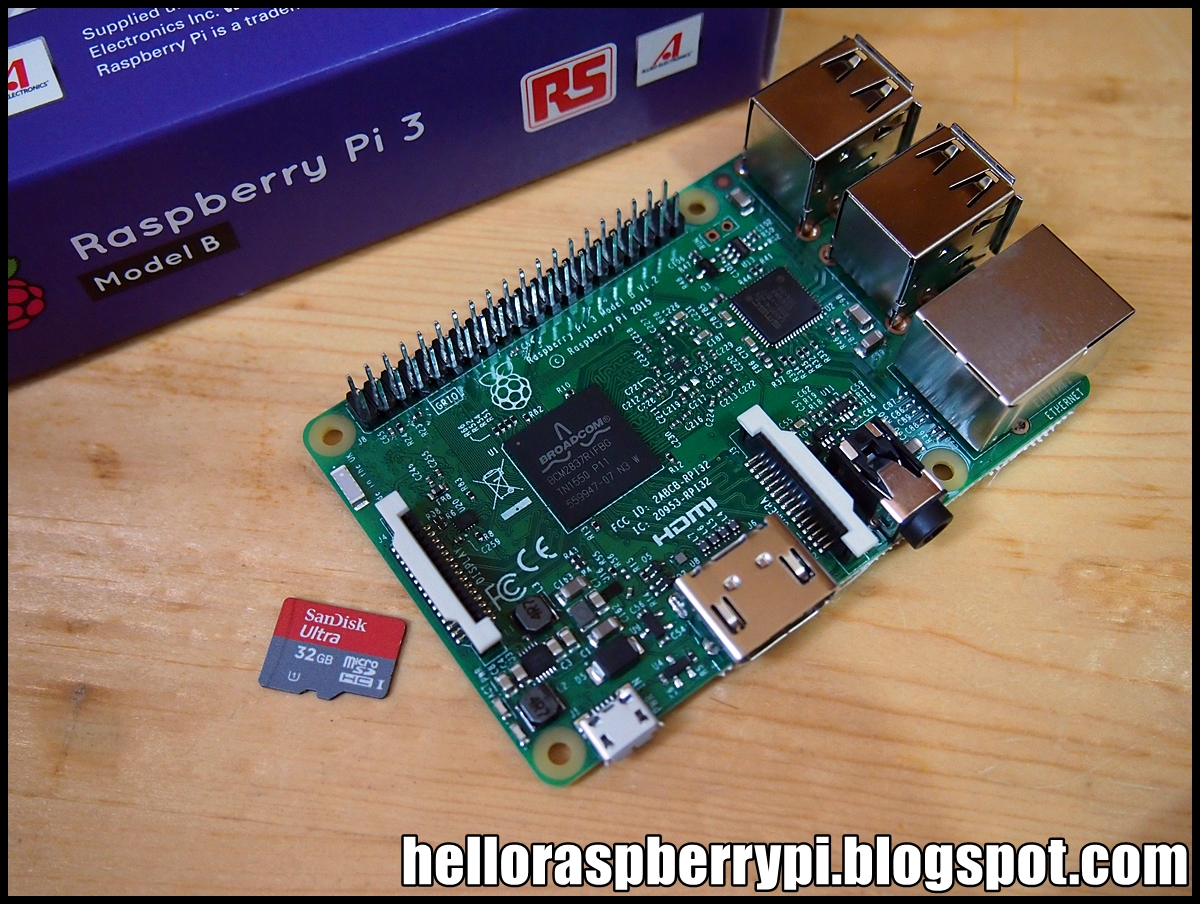
Raspbian Jessie update release 2016-05-10, DOWNLOAD HERE.
Release note:
2016-05-10:
* New version of Scratch, which no longer requires sudo
* New version of BlueJ
* New version of NodeRED
* New version of pypy
* pigpio included
* geany editor included
* SD Card Copier added (can be used to duplicate or back up the Pi)
* Bluetooth plugin added to taskbar
* Volume control on taskbar now compatible with Bluetooth devices
* New shutdown helper application
* Mouse double-click speed setting added to mouse and keyboard preference application
* Option to enable / disable 1-wire interface and remote access to pigpio added to Raspberry Pi config application
* File system automatically expanded on first boot
* Empty Wastebasket option added to right-click menu
* Ctrl-Alt-T can be used to open a terminal window
* Various small bug fixes and appearance tweaks
* Updated firmware and kernel (https://github.com/raspberrypi/firmware/commit/cc6d7bf8b4c03a2a660ff9fdf4083fc165620866)
Showing posts with label Raspbian Jessie. Show all posts
Sunday, May 15, 2016
Tuesday, April 12, 2016
Install and run Arduino IDE on Raspberry Pi/Raspbian Jessie
Now Arduino IDE for Linux ARM Preview is provided in Arduino - Software - HOURLY BUILDS. You can install on Raspberry Pi.
This video show how to install Arduino IDE for Linux ARM (1.6.9 currently) on Raspberry Pi 3/Raspbian Jessie.
Insert Arduino UNO to Raspberry Pi, run and program UNO. No more setting needed:)
remark:
Intel Curie Boards for Arduino/Genuino 101 is not supported currently!
Updated@2017-06-14:
~ Re-tried again on Raspberry Pi 3 with Raspbian Jessie with PIXEL (2017-04-10 release).
Updated@2019-02-19:
Please check the updated post: Install Arduino IDE 1.8.8 on Raspberry Pi/Raspbian Stretch release 2018-11-13.
Tuesday, March 22, 2016
Setup Bluetooth for Raspberry Pi 3/Raspbian Jessie, and pair/send file to Windows PC
To use the built-in Bluetooth of Raspberry Pi 3/Raspbian Jessie, we have to install some software:
$ sudo apt-get install pi-bluetooth
(it should be already installed in update Raspbian Jessie)
$ sudo apt-get install bluetooth bluez blueman
Then reboot.
This video show how to send/receive file between raspberry Pi 3/Raspbian Jessie and PC running Windows 10.
Saturday, March 19, 2016
Install Qt5/Qt Creator for Raspberry Pi 3/Raspbian Jessie
This post show how to install Qt5 and QtCreator on Raspberry Pi 3 running Raspbian Jessie release 2016-03-18.
install qt5-default and qtcreator:
$ sudo apt-get install qt5-default
$ sudo apt-get install qtcreator
(Actually same as the steps to install on Raspberry Pi 2)
This video show installation remotely from Windows running PuTTY and Xming.
Remark:
The MicroSD used is:
Kingston Micro SDHC 32GB Class 10/U1 (Up to 80MB/s Read)
(KINGSTON SDC10G2/32GB - 80MB/s)
Remark@2017-04-11:
Please also read Jakob Brunhart comments below.
Friday, March 18, 2016
Thursday, March 10, 2016
Watch Youtube on Raspberry Pi 3/built-in WiFi
This video show how Youtube video play on Raspberry Pi 3:
- Raspbian Jessie 2016-02-26
- Load Youtube with built-in Web Browser
- Connect Internet via the Built- in WiFi
Display WiFi config using Linux command iwconfig
Iwconfig is similar to ifconfig(8), but is dedicated to the wireless interfaces. It is used to set the parameters of the network interface which are specific to the wireless operation (for example : the frequency). Iwconfig may also be used to display those parameters, and the wireless statistics (extracted from /proc/net/wireless).
All these parameters and statistics are device dependent. Each driver will provide only some of them depending on hardware support, and the range of values may change. Please refer to the man page of each device for details.
This video show iwconfig run on Raspberry Pi 3/Raspbian Jessie with build-in WiFi, to display WiFi info:
We can get WiFi link quality with command:
$ iwconfig wlan0 | grep -i quality
Raspberry Pi 3 open box and first boot Raspbian Jessie
This video show open box of the new Raspberry Pi 3:
This video show how Raspberry Pi 3 first boot Raspbian Jessie 2016-02-26 version. This version added support for Pi 3, including Wifi and Bluetooth, and provide option to set wifi country code in raspi-config.
For temporary, a Raspberry Pi 2 transparent case is used.
Note, the LED is relocated on Raspberry Pi 3.
For temporary, a Raspberry Pi 2 transparent case is used.
Note, the LED is relocated on Raspberry Pi 3.
As always, I will update and upgrade apt-get and update firmware.
$ sudo apt-get update
$ sudo apt-get upgrade
$ sudo rpi-update
Friday, February 26, 2016
Install Qt5/Qt Creator for Raspberry Pi 2/Raspbian Jessie
For Raspbian Jessie, qt5-default (Qt 5 development defaults package) is included in default repository. Here show how to install Qt5 and Qt Creator on Raspberry Pi 2 running frash new Raspbian Jessie, release 2016-02-09.
As my usual practice, update apt repository and firmware:
$ sudo apt-get update
$ sudo apt-get upgrade
$ sudo rpi-update
Then reboot if need.
Install xrdp, such than I can control Raspberry Pi remotely from Windows, and capture screen action.
$ sudo apt-get install xrdp
install qt5-default and qtcreator:
$ sudo apt-get install qt5-default
$ sudo apt-get install qtcreator
Once installed, you can run Qt Creator from desktop menu:
Menu > Programming > Qt Creator
or, enter the command in LXTerminal:
$ qtcreator
In my test, Qt Creator CANNOT run remotely from Windows using Microsoft Remote Desktop:
It can run locally:
And can run remotely from Windows using Putty/Xming:
As show in the videos, the code cannot be compiled with default setting caused by:
"Qt Creator needs a compiler set up to build. Configure a compiler in the kit options"
To fix it, refer to the above videos.
But, in my test, the compiler option cannot be saved, and I have to correct it every-time running Qt Creator.
Related:
- Same steps to Install Qt5/Qt Creator for Raspberry Pi 3/Raspbian Jessie
Monday, February 22, 2016
Raspbian Jessie 2016-02-09 released
Raspbian Jessie 2016-02-09 released, DOWNLOAD HERE.
Release notes:
2016-02-09:
* dtb that uses mmc sdcard driver (fixes problems experienced with certain SD cards)
2016-02-03:
* new version of Sonic Pi (2.9)
* new version of Scratch (15/1/16)
* new version of Node-Red (2.5)
* new version of Wolfram (10.3)
* optional experimental GL desktop driver (can be enabled using advanced options in command-line raspi-config)
* new version of Java (1.8.0_65)
* new version of WiringPi
* raspi-gpio included
* ping no longer requires sudo (except NOOBS installs)
* support for more USB audio devices in lxpanel
* bug fix for creation of new menus in Alacarte
* various changes to raspi-config and GUI to tidy up board support and fix bugs, and updated translations
* small tweaks to theme to support GL driver
~ link to Release notes.
Release notes:
2016-02-09:
* dtb that uses mmc sdcard driver (fixes problems experienced with certain SD cards)
2016-02-03:
* new version of Sonic Pi (2.9)
* new version of Scratch (15/1/16)
* new version of Node-Red (2.5)
* new version of Wolfram (10.3)
* optional experimental GL desktop driver (can be enabled using advanced options in command-line raspi-config)
* new version of Java (1.8.0_65)
* new version of WiringPi
* raspi-gpio included
* ping no longer requires sudo (except NOOBS installs)
* support for more USB audio devices in lxpanel
* bug fix for creation of new menus in Alacarte
* various changes to raspi-config and GUI to tidy up board support and fix bugs, and updated translations
* small tweaks to theme to support GL driver
~ link to Release notes.
Tuesday, December 1, 2015
Raspbian Jessie updated 2015-11-21
Raspbian Jessie (and Raspbian Jessie Lite) updated 2015-11-21 with Kernel 4.1, visit: DOWNLOAD Raspbian.
Friday, November 13, 2015
Download and Install Netbeans IDE 8.1 on Raspberry Pi 2/Raspbian Jessie
![]() |
| Netbeans IDE 8.1 run on Raspberry Pi 2/Raspbian Jessie |
- Visit netbeans.org, download NetBeans IDE 8.1 for platform of OS Independent Zip.
- After the download of the platform-independent ZIP file completes, extract it to any folder on your system.
- Switch to the /netbeans/bin, run ./netbeans
Sunday, October 4, 2015
Install and test python-gphoto2 (Python interface to libgphoto2) on Raspberry Pi 2/Raspbian Jessie - fail
python-gphoto2 is a comprehensive Python interface (or binding) to libgphoto2.
Before install python-gphoto2, we have to install libgphoto2, I run the gphoto2-updater script to install gphoto2 and libgphoto2 on Raspberry Pi 2/Raspbian Jessie. After finished, gphoto2 2.5.8 and libgphoto2 2.5.4 will be installed.
- Install python-dev
$ sudo apt-get install python-dev
- install python-gphoto2 with pip
$ sudo pip install gphoto2
If you installed with pip the example files should be in /usr/share/python-gphoto2/examples or /usr/local/share/python-gphoto2/examples or somewhere similar. Otherwise they are in the examples sub-directory of your working directory. In Raspbian Jessie, it should be in /usr/local/share/python-gphoto2/examples.
Connect a digital camera to your Raspberry Pi, switch it on, and unmount it before access with Python, and try one of the example programs:
$ python camera-summary.py
In my first test, I can run example of camera-summary.py to list details of the connected camera, but fail to capture image, with Segmentation fault!
In order to verify the steps, I redo it on Raspberry Pi (1st generation, NOT 2)/Raspbian Wheezy. Read "Install python-gphoto2 on Raspberry Pi/Raspbian Wheezy - success".
Updated@2015-12-03:
After install both gphoto and libgphoto2 of the same version 2.5.9, we can install python-gphoto2 and capture image successful.
Before install python-gphoto2, we have to install libgphoto2, I run the gphoto2-updater script to install gphoto2 and libgphoto2 on Raspberry Pi 2/Raspbian Jessie. After finished, gphoto2 2.5.8 and libgphoto2 2.5.4 will be installed.
- Install python-dev
$ sudo apt-get install python-dev
- install python-gphoto2 with pip
$ sudo pip install gphoto2
If you installed with pip the example files should be in /usr/share/python-gphoto2/examples or /usr/local/share/python-gphoto2/examples or somewhere similar. Otherwise they are in the examples sub-directory of your working directory. In Raspbian Jessie, it should be in /usr/local/share/python-gphoto2/examples.
Connect a digital camera to your Raspberry Pi, switch it on, and unmount it before access with Python, and try one of the example programs:
$ python camera-summary.py
In my first test, I can run example of camera-summary.py to list details of the connected camera, but fail to capture image, with Segmentation fault!
In order to verify the steps, I redo it on Raspberry Pi (1st generation, NOT 2)/Raspbian Wheezy. Read "Install python-gphoto2 on Raspberry Pi/Raspbian Wheezy - success".
Updated@2015-12-03:
After install both gphoto and libgphoto2 of the same version 2.5.9, we can install python-gphoto2 and capture image successful.
Saturday, October 3, 2015
Remote run JavaFX on Raspbian Jessie, from Netbeans/Windows 10
This video show how to setup Remote Java SE Platform in Netbeans IDE running on Windows 10, deploy JavaFX application running on Raspberry Pi 2/Raspbian Jessie. Actually, it's same as in Raspbian Wheezy.
Related:
- Remote develop C/C++ program from Windows 10, run on Raspberry Pi, using NetBeans IDE
Wednesday, September 30, 2015
Install gPhoto and libgphoto2 2 2.5.4 on Raspberry Pi 2/Raspbian-Jessie using apt-get
The new Raspbian Jessie apt-get repository now provide gPhoto2 and libgphoto2 version 2.5.4 (not the latest 2.5.8). If you accept, you can install it with command line:
$ sudo apt-get install gphoto2
This video show how to, and also show testing in command line.
If you prefer the latest gPhoto2 2.5.8, you can Compile it with gphoto2-updater script.
$ sudo apt-get install gphoto2
This video show how to, and also show testing in command line.
If you prefer the latest gPhoto2 2.5.8, you can Compile it with gphoto2-updater script.
Tuesday, September 29, 2015
Raspbian Jessie saved my defected Raspberry Pi 2
As I mentioned long time ago, My Raspberry Pi 2 cannot detect monitor resolution!!! It always set default resolution of 640x480. (It should be the first batch of RS version) That's why I have to bought second raspberry Pi 2.
Today I test new Raspbian Jessie on the defected Raspberry Pi 2, unexpectedly it can recognize the correct resolution.
Here is the same Raspberry Pi 2 running Raspbian Jessie (32G Ultra Class-10 micro-SD) vs Raspbian Wheezy (16G Class-4 micro-SD).
Today I test new Raspbian Jessie on the defected Raspberry Pi 2, unexpectedly it can recognize the correct resolution.
Here is the same Raspberry Pi 2 running Raspbian Jessie (32G Ultra Class-10 micro-SD) vs Raspbian Wheezy (16G Class-4 micro-SD).
![]() |
| 1440x900 detected in Raspbian Jessie |
![]() |
| 640x480 detected in Raspbian Wheezy |
First boot Raspbian Jessie on Raspberry Pi 2
First boot Raspbian Jessie (2015-09-24) on Raspberry Pi 2:
Now the RPi boot-up in GUI mode directly, you can access Raspberry Pi Configuration GUI with:
> Menu > Preferences > Raspberry Pi Configuration
You can now press [PrtSc] to capture screen.
~ More posts replated to new Raspbian Jessie.
Now the RPi boot-up in GUI mode directly, you can access Raspberry Pi Configuration GUI with:
> Menu > Preferences > Raspberry Pi Configuration
You can now press [PrtSc] to capture screen.
~ More posts replated to new Raspbian Jessie.
Raspbian Jessie - major Raspberry Pi official OS upgrade
It is a major version upgrade – from Raspbian Wheezy to Raspbian Jessie, with large number of changes to the underlying operating system.
Download HERE.
To know more about Raspbian Jessie, visit Raspberry Pi Blog.
Related to Raspbian Jessie:
- First boot Raspbian Jessie on Raspberry Pi 2.
- Bonus: Raspbian Jessie saved my defected Raspberry Pi 2
- gPhoto2 and GtKam, Raspbian Jessie apt-get repository now provide install gPhoto2 2.5.4 and GtKam 0.2.0.
- Remote run JavaFX on Raspbian Jessie, from Netbeans/Windows 10.
On raspberry Pi 1:
I tried to install Raspbian Jessie on Raspberry Pi 1, but the menu bar disappeared!
Download HERE.
To know more about Raspbian Jessie, visit Raspberry Pi Blog.
Related to Raspbian Jessie:
- First boot Raspbian Jessie on Raspberry Pi 2.
- Bonus: Raspbian Jessie saved my defected Raspberry Pi 2
- gPhoto2 and GtKam, Raspbian Jessie apt-get repository now provide install gPhoto2 2.5.4 and GtKam 0.2.0.
- Remote run JavaFX on Raspbian Jessie, from Netbeans/Windows 10.
On raspberry Pi 1:
I tried to install Raspbian Jessie on Raspberry Pi 1, but the menu bar disappeared!
![]() |
| Raspbian Jessie on Raspberry Pi 1 |
| Raspbian Jessie on Raspberry Pi 1 - remote login using Windows' Remote Desktop Connection and xrdp on Raspberry Pi |
Sunday, September 27, 2015
Compile and install gPhoto2 2.5.8 and libgphoto2 for Raspberry Pi, with gphoto2-updater script
gPhoto2 is a free, redistributable, ready to use set of digital camera software applications for Unix-like systems.
It can be installed on Raspberry Pi with:
$ sudo apt-get install gphoto2
But it's version 2.4.14-1, not the latest version 2.5.8.
gphoto2-updater is a compiler and installer script specifically created for Raspbian and Raspberry Pi, but should work over any Debian-based distribution. It support the latest version 2.5.8 currently.
To download and compile last script version just be sure you are connected to the Internet and run:
This video show running the script on Raspberry Pi 2/Raspberry Wheezy to compile and install gphoto2 2.5.8 in 46min.
Condition:
- Board: Raspberry Pi 2 (RS version)
- OS: Raspbian Wheezy 2015-05-05
- SD: Class-4 (slow)
- Connection: WiFi
- Remote control from Windows 10 running PuTTY SSH
Next:
- Test gPhoto2 2.5.8 on Raspberry Pi 2 + Nikon D7000 DSLR, in command line
- Install and run GtKam on Raspberry Pi 2
Updated@2015-09-30:
This video show running the script on Raspberry Pi 2/NEW Raspbian Jessie to compile and install gphoto2 2.5.8 in 23min.
After finished, the gPhoto2 is version 2.5.8, but libgphoto2 is 2.5.4!!!
Condition:
- Board: Raspberry Pi 2 (Element-14 version)
- OS: Raspbian Jessie 2015-09-24
- SD: Class-10 Ultra (fast)
- Connection: Cable
- Remote control from Windows 10 Remote Desktop Connection to Raspberry Pi XDP
[Remark]
Just for reference. It's NOT aim to compare the performance between Raspbian Wheezy and Jessie. The two setup in difference configuration.
Updated again@2015-12-02:
To install both gphoto2 and libphoto2 2.5.9, refer "Install gphoto2 and libgphoto2 version 2.5.9 on Raspberry Pi 2/Raspbian Jessie 2015-11-21".
python-gphoto2 related:
- Install python-gphoto2 on Raspberry Pi 2/Raspbian Jessie - fail
- Install python-gphoto2 on Raspberry Pi 1/Raspbian Wheezy - success
It can be installed on Raspberry Pi with:
$ sudo apt-get install gphoto2
But it's version 2.4.14-1, not the latest version 2.5.8.
gphoto2-updater is a compiler and installer script specifically created for Raspbian and Raspberry Pi, but should work over any Debian-based distribution. It support the latest version 2.5.8 currently.
To download and compile last script version just be sure you are connected to the Internet and run:
$ wget https://raw.githubusercontent.com/gonzalo/gphoto2-updater/master/gphoto2-updater.sh && chmod +x gphoto2-updater.sh && sudo ./gphoto2-updater.sh
This video show running the script on Raspberry Pi 2/Raspberry Wheezy to compile and install gphoto2 2.5.8 in 46min.
Condition:
- Board: Raspberry Pi 2 (RS version)
- OS: Raspbian Wheezy 2015-05-05
- SD: Class-4 (slow)
- Connection: WiFi
- Remote control from Windows 10 running PuTTY SSH
Next:
- Test gPhoto2 2.5.8 on Raspberry Pi 2 + Nikon D7000 DSLR, in command line
- Install and run GtKam on Raspberry Pi 2
Updated@2015-09-30:
This video show running the script on Raspberry Pi 2/NEW Raspbian Jessie to compile and install gphoto2 2.5.8 in 23min.
After finished, the gPhoto2 is version 2.5.8, but libgphoto2 is 2.5.4!!!
Condition:
- Board: Raspberry Pi 2 (Element-14 version)
- OS: Raspbian Jessie 2015-09-24
- SD: Class-10 Ultra (fast)
- Connection: Cable
- Remote control from Windows 10 Remote Desktop Connection to Raspberry Pi XDP
[Remark]
Just for reference. It's NOT aim to compare the performance between Raspbian Wheezy and Jessie. The two setup in difference configuration.
Updated again@2015-12-02:
To install both gphoto2 and libphoto2 2.5.9, refer "Install gphoto2 and libgphoto2 version 2.5.9 on Raspberry Pi 2/Raspbian Jessie 2015-11-21".
python-gphoto2 related:
- Install python-gphoto2 on Raspberry Pi 2/Raspbian Jessie - fail
- Install python-gphoto2 on Raspberry Pi 1/Raspbian Wheezy - success
Subscribe to:
Posts (Atom)